Module "Purchasing"
Module "Purchasing"
Purpose
The Purchasing module covers the entire path from identifying need to paying the vendor. Each step is recorded as a separate document: Purchase Order, Goods Receipt, Vendor Invoice, Payment. The system automatically pulls prices from history, calculates payment due dates per vendor terms, and shows where each order is stuck.
Purchasing Workbench
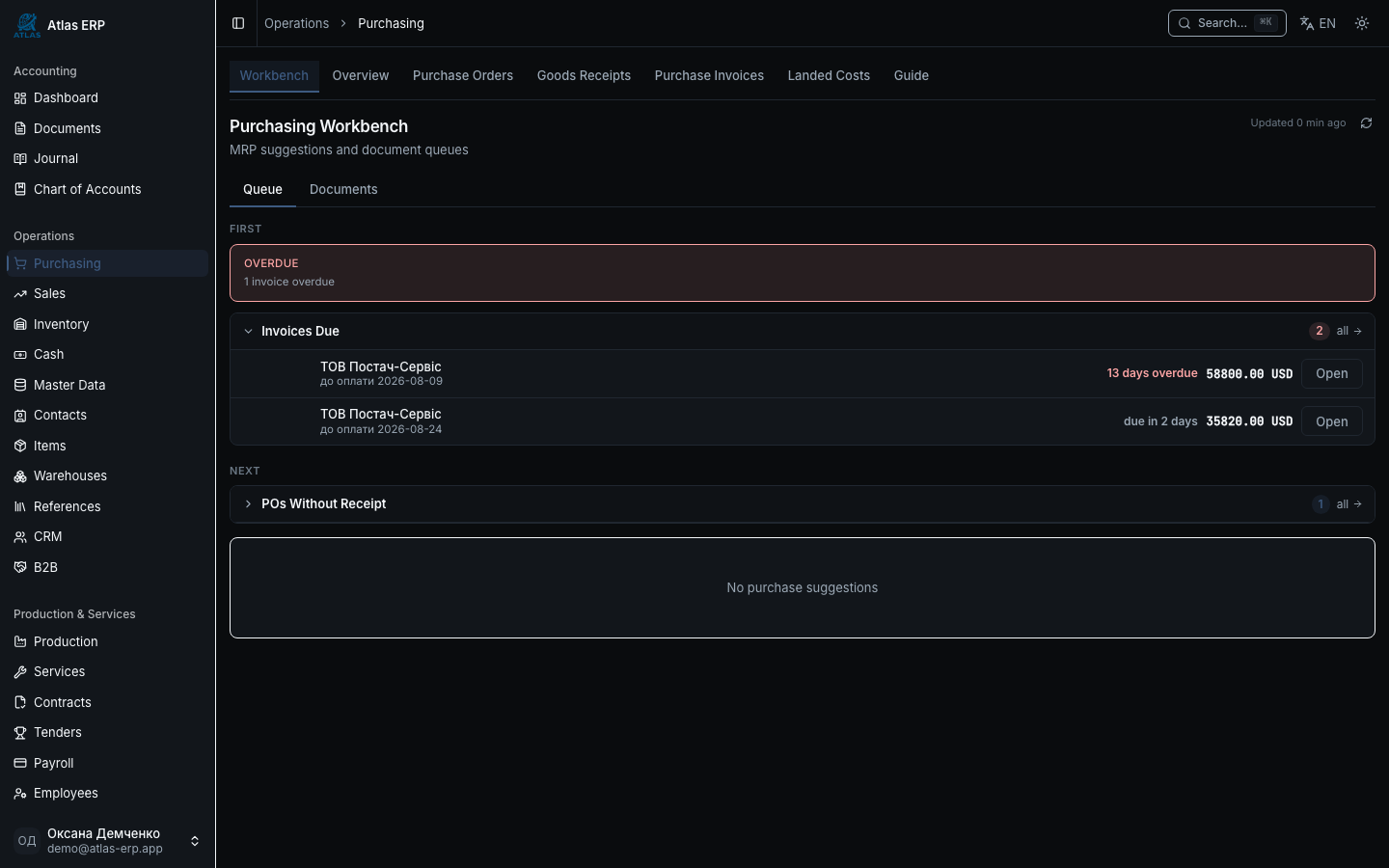
The first screen of the Purchasing module — the Purchasing Workbench. You see several things at once:
MRP Suggestions
At the top — a table of items with stock deficit. The system recommends order quantity. You can:
- Select a vendor group.
- Click "Create PO" — the system copies items into a new purchase order.
Queue Documents (Queues)
Three configurable queues help you focus:
- Overdue Invoices — vendor invoices with approaching or past due date.
- Orders Without Receipt — confirmed POs not yet fully received.
- Receipts Without Invoice — posted goods receipts not yet matched with vendor invoice.
Each queue row links directly to the document.
Configuring Queue Thresholds
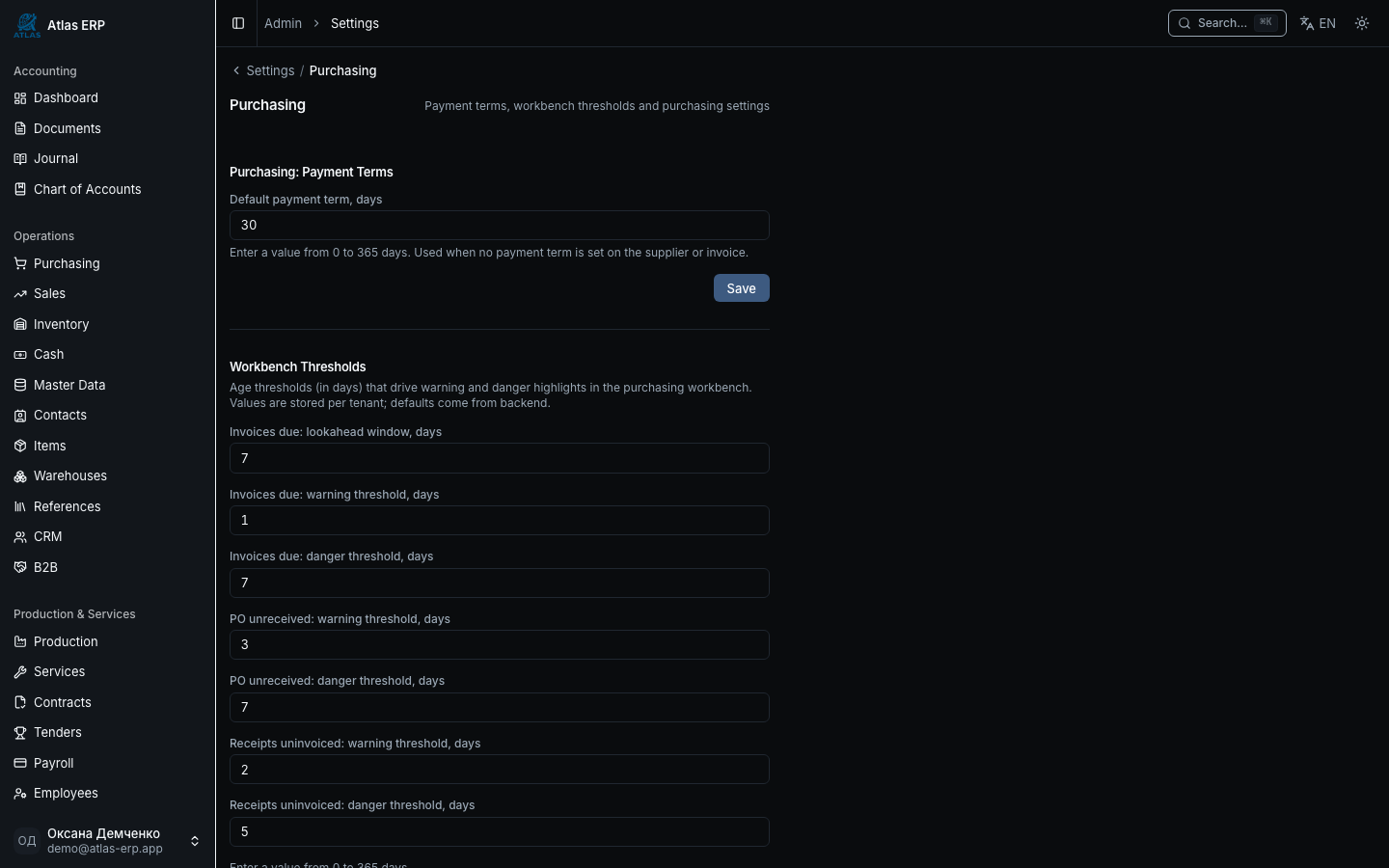
Click Settings on the workbench:
For each queue, set Days Threshold:
- Orders without receipt: warn after N days
- Receipts without invoice: warn after N days
- Invoices to pay: warn N days before due date
Click "Save" — system remembers and updates queues accordingly.
Main Scenarios
Scenario 1: PO → Receipt → Invoice → Payment
- Go to Purchasing → Purchase Orders → New Order.
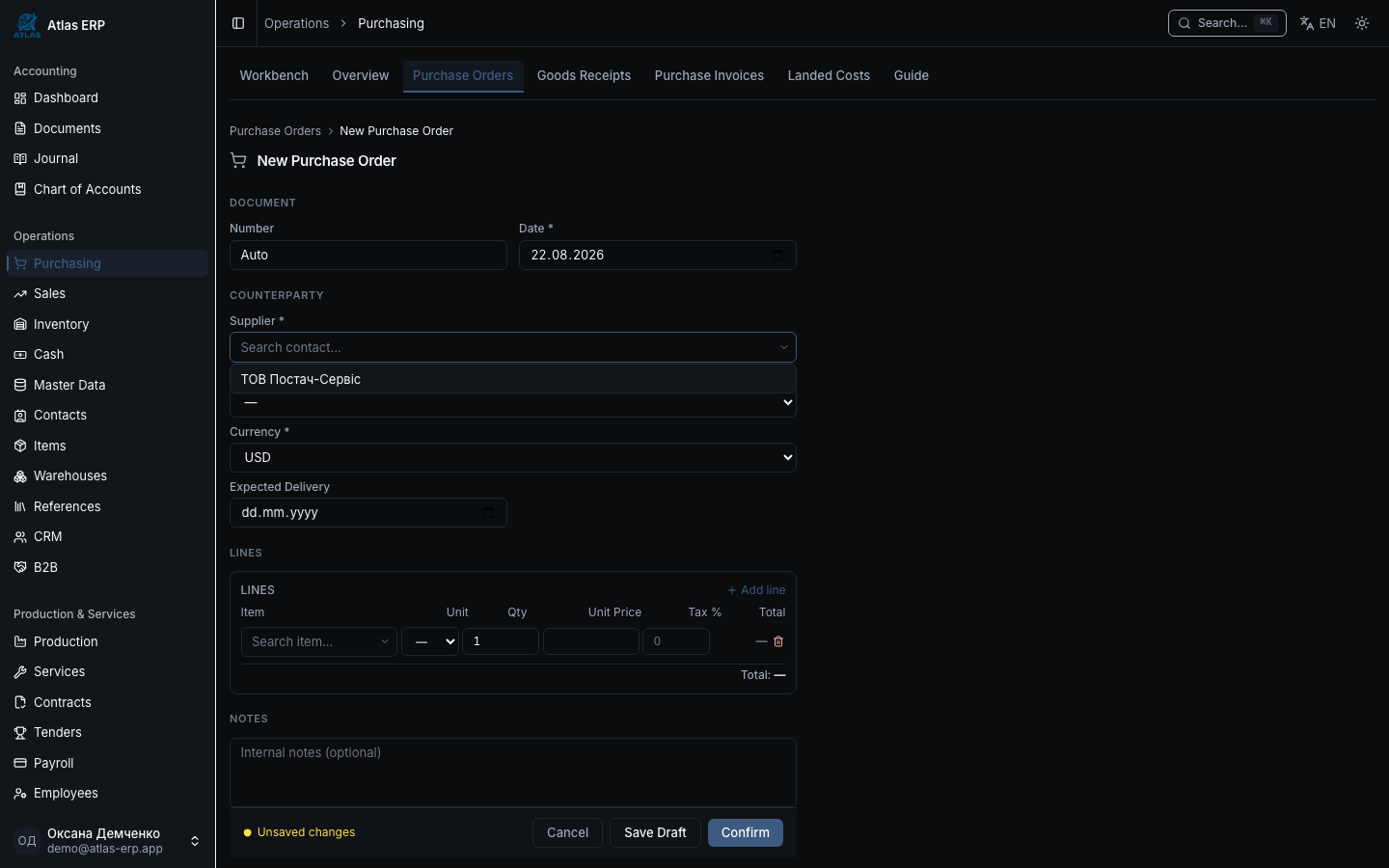
Fill Main Data:
- Vendor — contact
- Date of order
- Warehouse — where goods arrive
- Currency of order
Add Line Items:
- Select Item.
- System auto-fills price from last purchase of this item from this vendor.
- If no history — field stays empty for manual entry.
- Nearby shows Comparison of recent prices from all vendors.
- Specify Quantity.
- System calculates Total (qty × price).
Exchange Rate is fixed automatically per system rules on document date (R14).
Click "Save" — document in "Draft" status.
Click "Confirm" — order becomes "Confirmed".
Click "Send to Vendor" (permission:
purchasing.order_send):- System generates PDF of the order.
- You download & send to vendor manually (no auto-send).
Scenario 2: Document Chain (ChainBar)
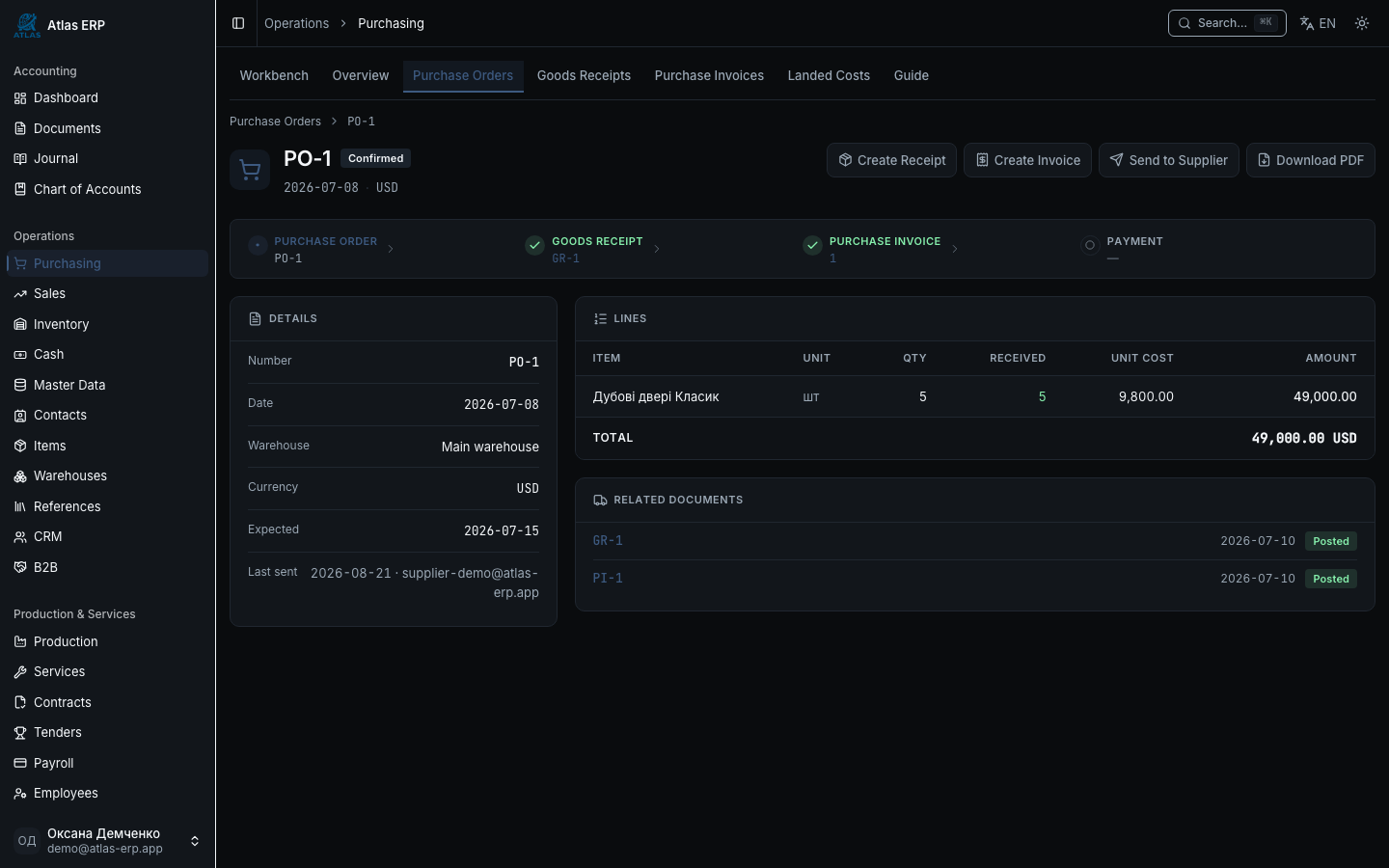
On each document's page, at the top — ChainBar (horizontal chain panel):
Order [✓] → Receipt [ ] → Invoice [ ] → Payment [ ]
Each step shows status and lets you proceed to next. Blue button = recommended next action.
- From order, click "Create Receipt".
- Form opens for Goods Receipt with pre-filled line items from order.
- Verify quantity (may have changed at warehouse).
- Click "Post" — goods credited to warehouse, costing calculated (FIFO / Average).
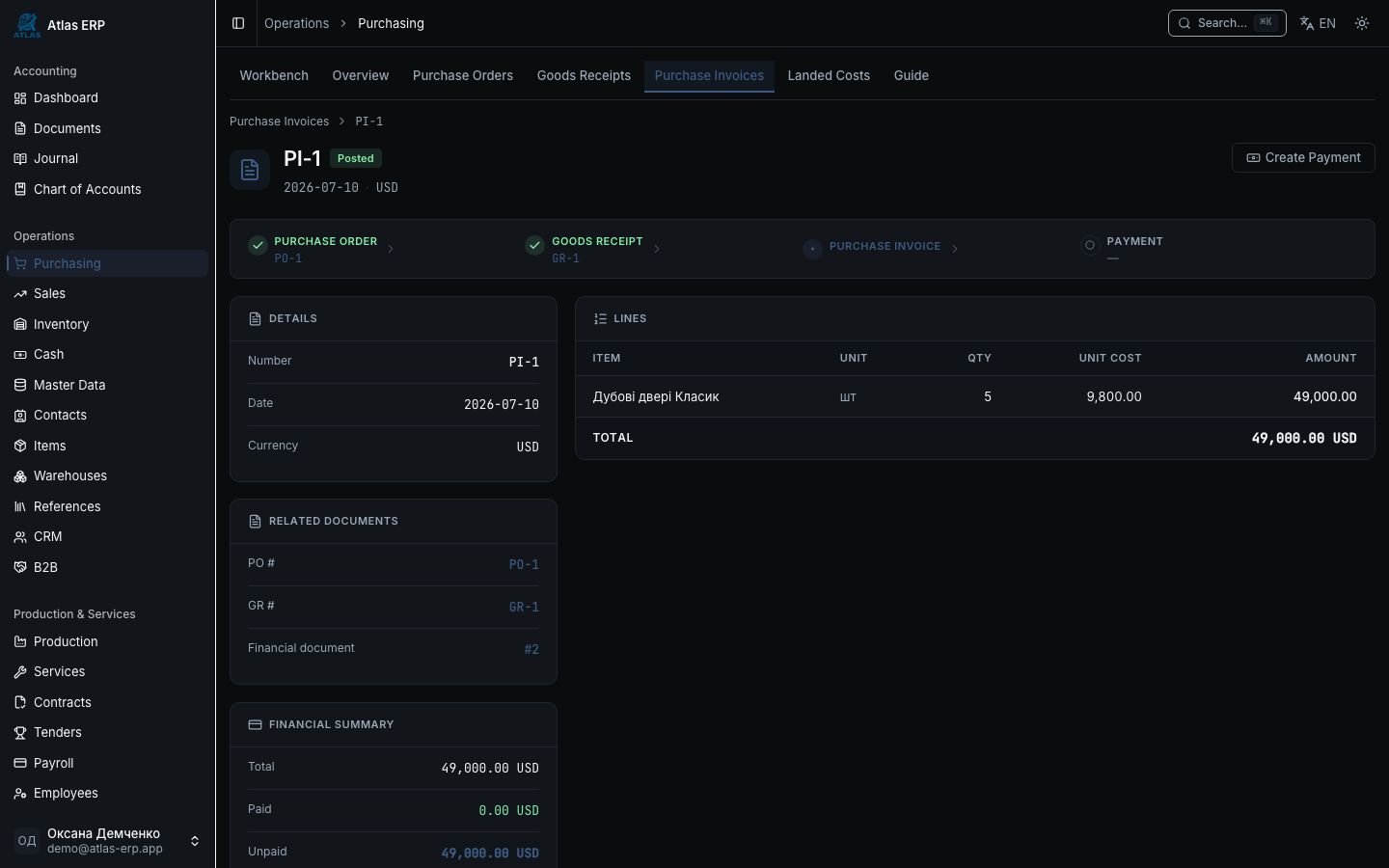
From receipt, click "Create Invoice".
Fill Due Date or leave blank for auto-calculation per vendor payment terms (R15).
Click "Post" — system creates entry: Debit Items / Credit Accounts Payable.
From invoice, click "Create Payment" or record payment in Cash & Bank to record the payment.
Scenario 3: Documents Feed
The Documents tab on the workbench shows a unified feed of all purchasing documents:
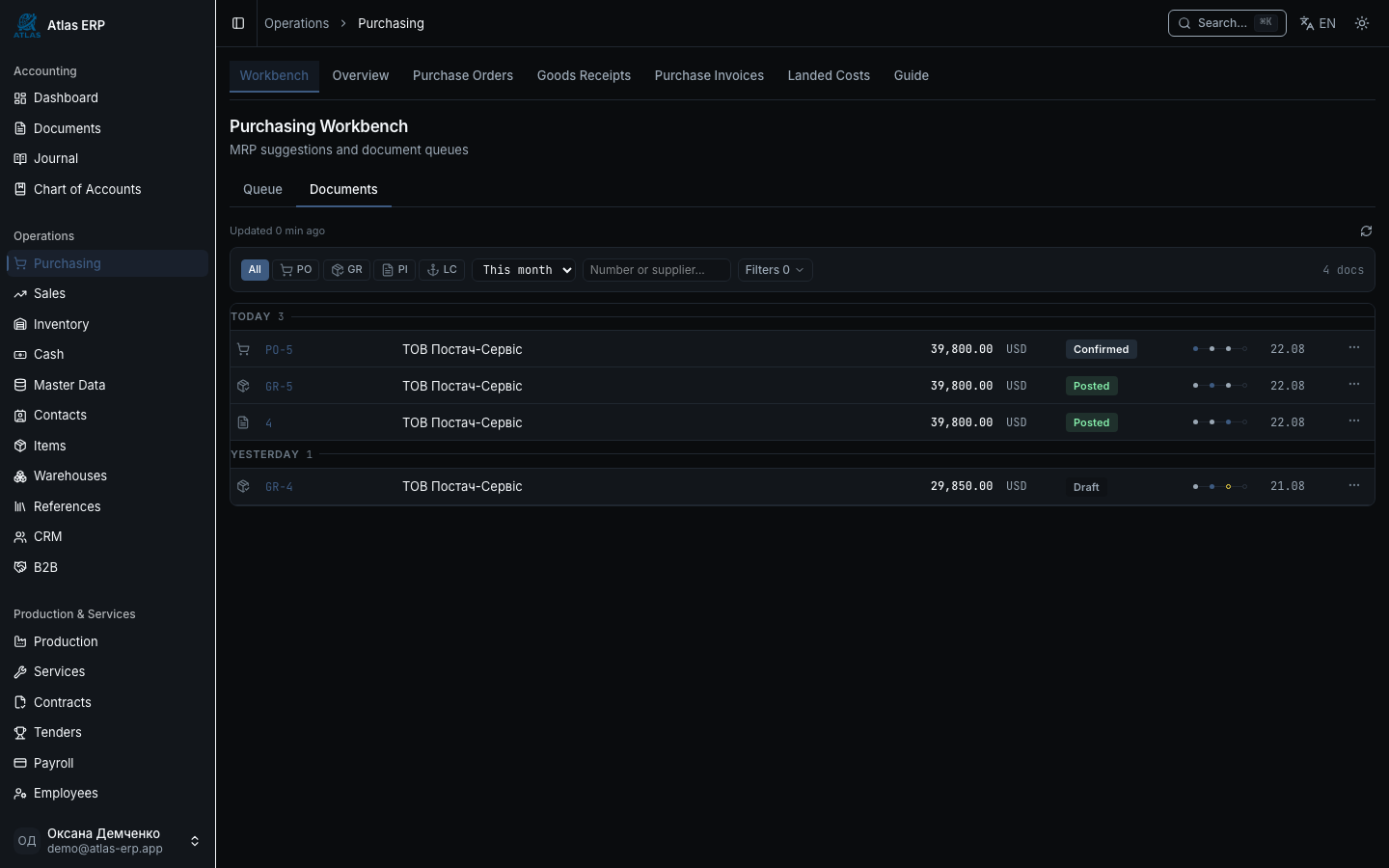
- Filters by type (PO, Receipt, Invoice), period, status, vendor.
- Search by number or vendor name.
- Chain View displays linked docs: PO → Receipt → Invoice in one row.
- Micro-dots near each doc show its chain state.
One look — and you see where the hold-up is.
Tips
Auto-price from history. When adding a line to a PO, the system proposes price in order:
- Last price from same vendor
- If none — last price from any vendor
- If none — empty for manual entry. Context banner shows price source.
Price Comparison. On a PO line, click Compare — system shows recent prices of this item from all vendors with dates.
Due Date per vendor terms. Leave Due Date blank — system calculates per:
- Days to Pay field on vendor card (if exists)
- Tenant default payment terms (if vendor has none) Due date always shown honestly — no hidden rounding.
ChainBar always shows state. Even if you navigate to a doc from elsewhere — one glance at the chain panel tells you what's done and what's next.
Guide Tab. On the workbench, click Guide — system shows the full purchasing flow from order to payment with explanations for each step.
Purchasing Guide
On the purchasing workbench, click the Guide tab:
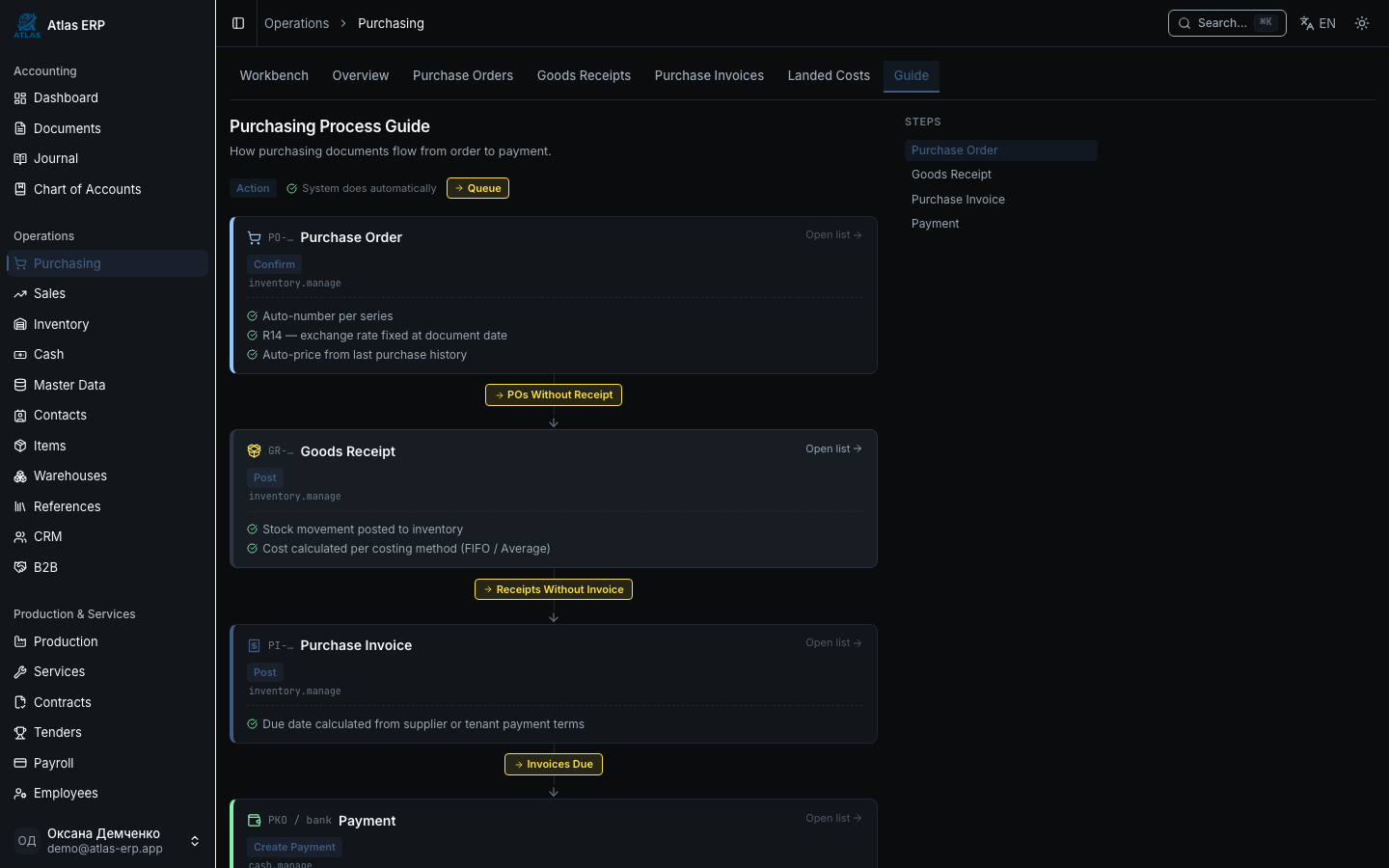
The system shows an interactive map of the entire flow:
- Purchase Order — which button to click, what data auto-fills.
- Goods Receipt — how stock moves, how costing is calculated.
- Vendor Invoice — how due date is computed, what entries are created.
- Due Date — which rules the system uses to set payment term.
- Workbench — how to use the queue view of document statuses.
- Documents Tab — how to find a document in the feed with filters.
For someone new to the team, this is the complete process map.